SRT vs VTT: Which Subtitle Format Should You Use?
Compare SRT and WebVTT syntax, styling, and documented compatibility, then verify the current requirements of your player, editor, or publishing platform.
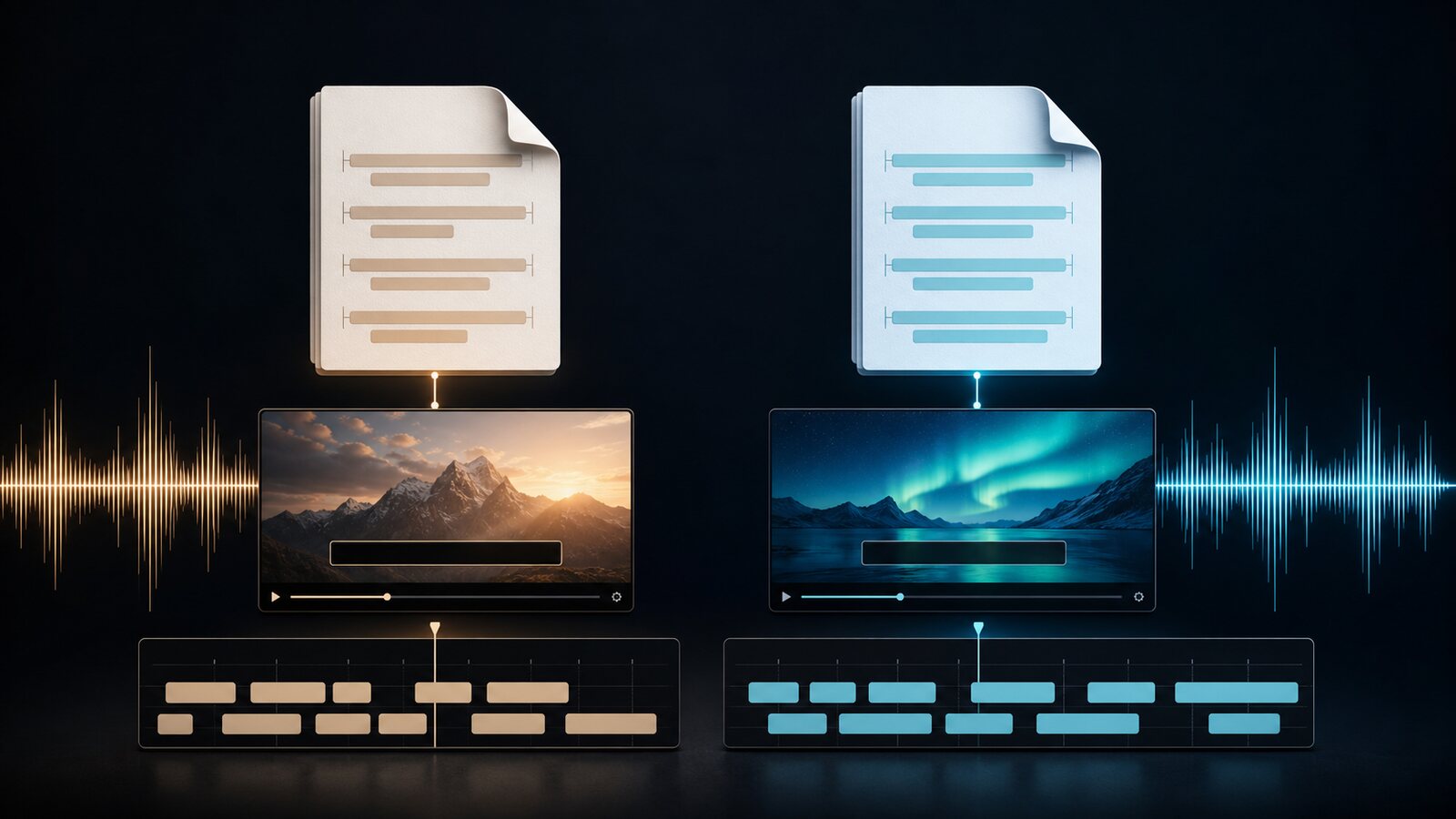
SRT is a simple timed-text format supported by many video tools. WebVTT is standardized for web text tracks and adds cue settings, comments, and browser styling hooks. Both carry text and timestamps, but import support and retained styling vary by destination. This comparison was checked on 28 July 2026; always verify the current documentation of the exact product and device you use.
What Are Subtitle File Formats?
Subtitle files are simple text files that pair spoken dialogue with timestamps. When a video player reads a subtitle file, it knows exactly when to display each line of text on screen. The two most common formats are SRT (SubRip Subtitle) and VTT (Web Video Text Tracks), and while they do the same fundamental job, there are important differences that affect which one you should choose.
This guide provides a complete, side-by-side comparison of SRT and VTT so you can make the right choice for your project — whether you are uploading to YouTube, building a web app, or editing a professional video.
Quick Comparison: SRT vs VTT at a Glance
Before diving into the details, here is a summary table highlighting the key differences between the two formats:
| Feature | SRT | VTT |
|---|---|---|
| File extension | .srt | .vtt |
| Header required | No | Yes (WEBVTT) |
| Decimal separator | Comma (,) | Period (.) |
| Cue numbering | Required | Optional |
| CSS styling | Not supported | Supported |
| Text positioning | Not supported | Supported |
| Metadata / notes | Not supported | Supported |
| Chapter markers | Not supported | Supported |
| HTML5 native | No | Yes |
| Typical adoption | Broad across media tools | Web-focused, with some platform imports |
Understanding the SRT Format
SRT is an established and widely supported subtitle format. Created for the SubRip software, it uses numbered entries with a timestamp range and text. The format is plain text and can be edited in a text editor, although each destination may apply its own parser rules.
Here is a real-world example of what an SRT file looks like:
1
00:00:01,500 --> 00:00:04,000
Hello and welcome to this video.

2
00:00:04,500 --> 00:00:07,200
Today we are going to talk about subtitles.

3
00:00:08,000 --> 00:00:12,800
We will cover the two most popular formats:
SRT and VTT.

4
00:00:13,500 --> 00:00:17,300
<b>Let's get started!</b>
Every SRT entry follows the same three-part structure: a sequential number, a timestamp line with start and end times separated by -->, and one or more lines of subtitle text. Entries are separated by a blank line.
Key characteristics of SRT:
- Timestamp format:
HH:MM:SS,mmm— hours, minutes, seconds, and milliseconds separated by a comma (e.g., 00:00:01,500) - Basic formatting: Supports a limited set of HTML-like tags:
<b>for bold,<i>for italic, and<u>for underline - No advanced styling: No support for font colors, text positioning, backgrounds, or CSS
- No header: The file starts directly with cue number 1 — there is no file identifier
- Broad compatibility: Supported by many editors, players, and publishing platforms; confirm the current import path for the exact destination
Understanding the VTT Format
WebVTT (Web Video Text Tracks) was developed by the W3C specifically for HTML5 video. It is the native subtitle format for the web and is required by the HTML5 <track> element. VTT builds on SRT's foundation but adds powerful features designed for modern web use, including styling, positioning, and metadata.
Here is a real-world example of what a VTT file looks like:
WEBVTT
Kind: captions
Language: en

NOTE
This is a comment that will not be displayed.

introduction
00:00:01.500 --> 00:00:04.000
Hello and welcome to this video.

00:00:04.500 --> 00:00:07.200
Today we are going to talk about subtitles.

00:00:08.000 --> 00:00:12.800 position:10% align:start
We will cover the two most popular formats:
SRT and VTT.

00:00:13.500 --> 00:00:17.300
<b>Let's get started!</b>
Notice several things that differ from SRT: the mandatory WEBVTT header on line one, optional metadata right after the header, the ability to include NOTE comments, optional cue identifiers (like "introduction" instead of numbers), positioning settings on the timestamp line, and the use of a period instead of a comma for milliseconds.
Key characteristics of VTT:
- Mandatory header: Every VTT file must start with
WEBVTTon the first line — without it, browsers will reject the file - Timestamp format:
HH:MM:SS.mmm— uses a period as the decimal separator (e.g., 00:00:01.500). The hours portion is optional for videos under one hour - CSS styling: Supports the
::cueCSS pseudo-element for controlling font, color, background, opacity, and more - Cue positioning: Each cue can have
position,line,size,align, andverticalsettings to control exactly where text appears - Metadata and notes: Supports
NOTEblocks for comments and optional key-value metadata after the WEBVTT header - Chapter markers: Can define chapters for video navigation, not just subtitles
- Flexible numbering: Cue identifiers are optional and can be text strings, not just numbers
- Web text-track format: Standardized for use with the HTML
<track>element; test the browsers and styling features you support
SRT vs VTT: Side-by-Side Code Comparison
The best way to understand the practical difference is to see the exact same subtitle content in both formats. Here is an identical three-cue subtitle rendered in SRT and then in VTT:
SRT version:
1
00:00:05,000 --> 00:00:08,500
Captain Transcribe makes subtitles easy.

2
00:00:09,200 --> 00:00:13,000
Upload your video and review the editable
transcript after processing.

3
00:00:14,000 --> 00:00:17,500
Download as SRT, VTT, or plain text.
VTT version:
WEBVTT

00:00:05.000 --> 00:00:08.500
Captain Transcribe makes subtitles easy.

00:00:09.200 --> 00:00:13.000
Upload your video and review the editable
transcript after processing.

00:00:14.000 --> 00:00:17.500
Download as SRT, VTT, or plain text.
As you can see, the actual subtitle text is identical. The differences are structural: VTT has a header, uses periods instead of commas, and does not require cue numbers. For most content, switching between the two is straightforward.
What Are the Key Differences Between SRT and VTT?
While both formats carry the same core information — text and timing — the differences matter depending on where your subtitles will be used. Let's break each one down in detail:
Timestamp Format
SRT uses a comma as the millisecond separator (00:00:01,500), while VTT uses a period (00:00:01.500). This is the single most common source of errors when manually converting between formats. If you take an SRT file and just add a WEBVTT header without changing the commas to periods, the file will fail to load in a browser. Similarly, VTT timestamps pasted into an SRT file will not be recognized by most video editors.
Header Requirement
VTT files must begin with the text WEBVTT on the very first line. Optionally, metadata key-value pairs can follow on subsequent lines before the first blank line. SRT files have no header at all — they start directly with cue number 1. This means SRT files are slightly simpler to create from scratch.
Styling and Appearance
This is where VTT truly shines. With VTT, you can apply CSS styles using the ::cue selector to change font color, background color, font size, and text shadow. Individual cues can also be tagged with classes for targeted styling. SRT only supports basic <b>, <i>, and <u> tags, and even these are not supported by all players.
Cue Positioning
VTT allows you to control exactly where each subtitle appears on screen using settings like position:10%, line:0, align:start, and size:50%. This is particularly useful for avoiding overlapping with important visual content in the video. SRT offers no positioning control — subtitles always appear at the default location (usually bottom-center).
Metadata and Comments
VTT supports NOTE blocks that act as comments within the file. These are ignored by players but useful for translators, editors, or automated tools. VTT also supports header metadata. SRT has no comment or metadata mechanism at all.
Compatibility
SRT has broad support across media tools, while WebVTT is standardized for web text tracks. Neither label guarantees a particular import path: desktop, web, and mobile editions of the same product can differ, and platforms can change accepted formats.
Which Platforms Support Which Format?
Choosing between SRT and VTT often comes down to where you plan to use the subtitles. Here is a platform-by-platform compatibility breakdown:
| Platform | SRT Support | VTT Support |
|---|---|---|
| YouTube | Yes | Yes |
| Vimeo | Yes | Yes |
| HTML5 <track> | Not the standardized track format | Yes |
| CapCut Desktop/Web import | Yes | Not listed in the cited import guide |
| CapCut Mobile direct file import | No | No |
Sources checked on 28 July 2026: YouTube's supported caption formats, Vimeo's caption troubleshooting guide, the HTML track reference, and CapCut's subtitle-import guide. Check again before publishing because capabilities can change.
When Should You Use SRT?
Choose SRT when you are:
- Uploading to a destination whose current documentation explicitly lists SRT
- Editing in a desktop or web product whose current version imports SRT
- Sharing subtitle files with collaborators who use different software
- Sharing a plain-text timed file after collaborators confirm their import support
- Delivering files to a client and want maximum compatibility
SRT is often a practical interchange format, but it is not a substitute for checking the destination's documentation. For a deeper look at the syntax, read our guide on what an SRT file is.
When Should You Use VTT?
Choose VTT when you are:
- Embedding subtitles on a website using HTML5 video and the
<track>element - Building a web application that plays video and needs styled captions
- Needing advanced styling like colored text, custom fonts, or specific on-screen positioning
- Working with web-based video platforms that specifically require VTT
- Adding chapter markers or metadata alongside your subtitles
For a complete overview of the format, see our guide on what is a VTT file.
Can You Convert Between SRT and VTT?
Yes, and the conversion is straightforward because the two formats are structurally very similar. To convert an SRT file to VTT, you need to:
- Add
WEBVTTas the first line of the file - Replace all commas in timestamps with periods (e.g.,
00:00:01,500becomes00:00:01.500) - Optionally remove the cue numbers (they are not required in VTT)
To convert VTT to SRT, reverse the process:
- Remove the
WEBVTTheader and any metadata lines - Replace all periods in timestamps with commas
- Add sequential cue numbers if they are missing
- Remove any VTT-specific features like positioning settings or NOTE blocks
While you can do this manually in a text editor, the easiest approach is to use a tool like Captain Transcribe that exports both formats automatically from a single transcription.
How Captain Transcribe Handles Both Formats
Captain Transcribe can export a completed transcription as SRT or VTT. Review the draft, download the format documented by your destination, and validate it after import.
The transcription engine generates timed text and subtitle segmentation. For tutorials, short-form clips, training videos, or podcasts, review the words, speaker labels, and timing before publishing the exported file.
The platform also offers a plain text export for cases where you just need the transcript without any timing information, which is useful for blog posts, show notes, SEO content, or accessibility documentation.
The same completed transcription can be downloaded as TXT, SRT, or VTT. Captain Transcribe does not guarantee that every third-party platform, device, or software version accepts each export.
Key Takeaways
- SRT is broadly supported, but import capability must be checked for the current destination and device.
- WebVTT is standardized for HTML text tracks and supports cue styling hooks, positioning, and chapter tracks.
- The main syntax differences: VTT requires a WEBVTT header, uses periods for milliseconds (not commas), and makes cue numbering optional.
- Choose from the destination's current accepted-format list; use WebVTT for an HTML <track> workflow.
- Captain Transcribe exports both formats from one completed transcription; validate the selected file after import.
Related Articles
Related articles

How to Transcribe a Podcast: Complete Guide 2026
Learn how to create, review, and publish an editable podcast transcript with clear format and privacy checks.

How to Add Subtitles to YouTube Videos: The Ultimate Guide
Learn how to create, review, and upload SRT or WebVTT captions through YouTube Studio.
10 Tips to Get More Accurate Speech-to-Text Results
Practical tips to improve your transcription quality, from audio setup to AI tool settings.
This article was drafted with AI assistance and reviewed by The Captain before publication.