How to Add Subtitles to TikTok Videos in 2026
Learn a reviewable workflow for adding subtitles to TikTok videos with an editable AI-generated draft.
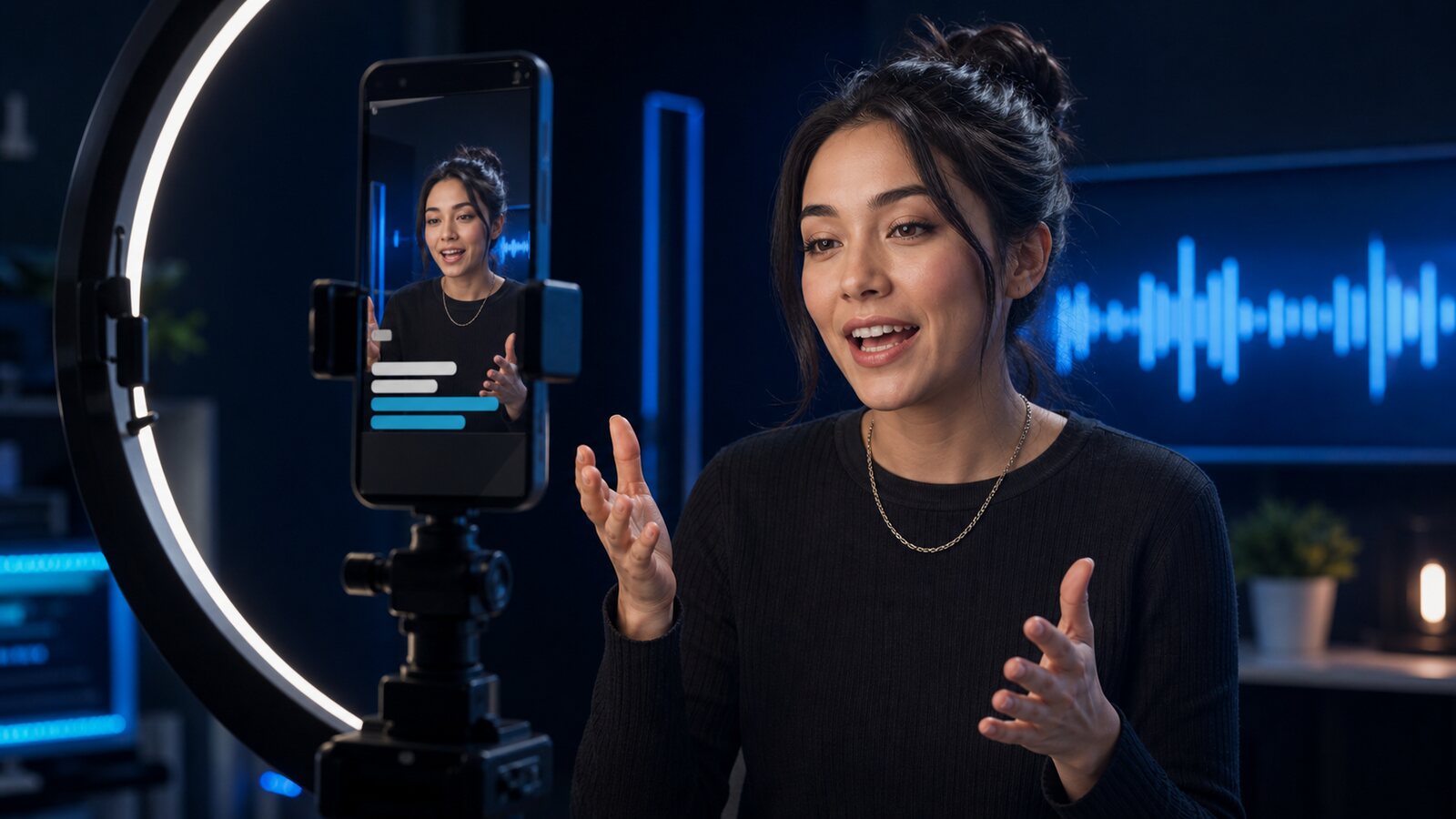
Why Do Subtitles Matter for TikTok Videos?
People often watch short-form video in situations where sound is muted or impractical. Captions make the message available in those contexts and improve accessibility, but their effect on watch time varies by audience and content.
Beyond engagement, subtitles make your content accessible to deaf and hard-of-hearing viewers, non-native speakers, and anyone in a noisy environment. Accessibility is not just the right thing to do — it also expands your potential audience significantly.
What Is the Problem with TikTok's Built-In Captions?
TikTok does offer an auto-caption feature, but creators quickly run into limitations. The accuracy varies widely depending on accents, background noise, and speaking pace. Editing mistakes one by one inside TikTok's editor is tedious, and you have little control over the caption style or timing.
A dedicated transcription editor is useful when you want to review text and timings before finishing the video in a compatible editor.
Step-by-Step: Adding Subtitles with Captain Transcribe
Here is one workflow for preparing reviewed subtitles for a TikTok video:
- Upload a supported file — Captain Transcribe accepts MP3, WAV, OGG, OPUS, FLAC, M4A, AAC, MP4, AVI, MOV, MKV, and WEBM files up to 95 MB for signed-in users.
- Choose your language — Select from 28 languages or automatic detection, then review the result for the accent and recording conditions.
- Select the "Short" subtitle style — It creates brief caption segments intended for vertical short-form video. Preview the placement in TikTok before publishing.
- Download your SRT file — Once the transcription is complete, download the subtitle file in SRT format. You can also grab a plain text transcript if you need it for your video description or repurposing.
- Import into your editor — Import the SRT into a compatible editor. Its timestamps remain relative to the uploaded source; preview the result against the final edit.
Choosing the Right Subtitle Style
Captain Transcribe offers three segmentation styles:
- Short — Creates shorter groups of up to four words for vertical-video editing.
- Standard — Creates longer cue groups, subject to line-length and timing boundaries.
- Word-by-word — Creates one timed word per cue; animation or highlighting is added later in the video editor.
The Short style changes segmentation only; preview it alongside the other styles and choose the version that remains readable in your final layout.
Tips to Maximize Engagement with Subtitled TikToks
- Position captions in the center — Avoid placing text too close to the top or bottom edges where TikTok overlays its own UI elements.
- Use a readable font — Bold, sans-serif fonts with a slight shadow or background work best on mobile screens.
- Keep your speaking pace natural — Speak clearly and review the result; speed, background noise, and overlapping voices can all affect recognition.
- Review and edit — Check generated subtitles, especially proper nouns, brand names, numbers, and timing. See our speech-to-text accuracy tips for more advice.
- Use a consistent review process — Check text, timing, safe areas, and readability on the final exported video.
Why Speed Matters for TikTok Creators
Processing time is not guaranteed and varies with the file, selected options, provider availability, and service load. Allow time to review the text and final burned-in placement.
The free tier gives you enough credits to test the workflow, and paid plans start at just a few euros per month with generous minute allowances for active creators.
Key Takeaways
- Captions support sound-off viewing — and make short-form videos more accessible.
- Every automatic transcript needs review — compare tools with your own representative audio instead of relying on a generic accuracy percentage.
- The Short style creates smaller groups — up to four words per segment; preview readability before publishing.
- Center captions away from UI overlays — avoid top and bottom edges where TikTok places controls.
- Review every final export — verify words, timing, contrast, and placement.
Related Articles
Related articles
Best AI Transcription Tools in 2026: Complete Comparison
Compare transcription workflows, exports, language coverage, and pricing links, then benchmark candidates with your own audio.
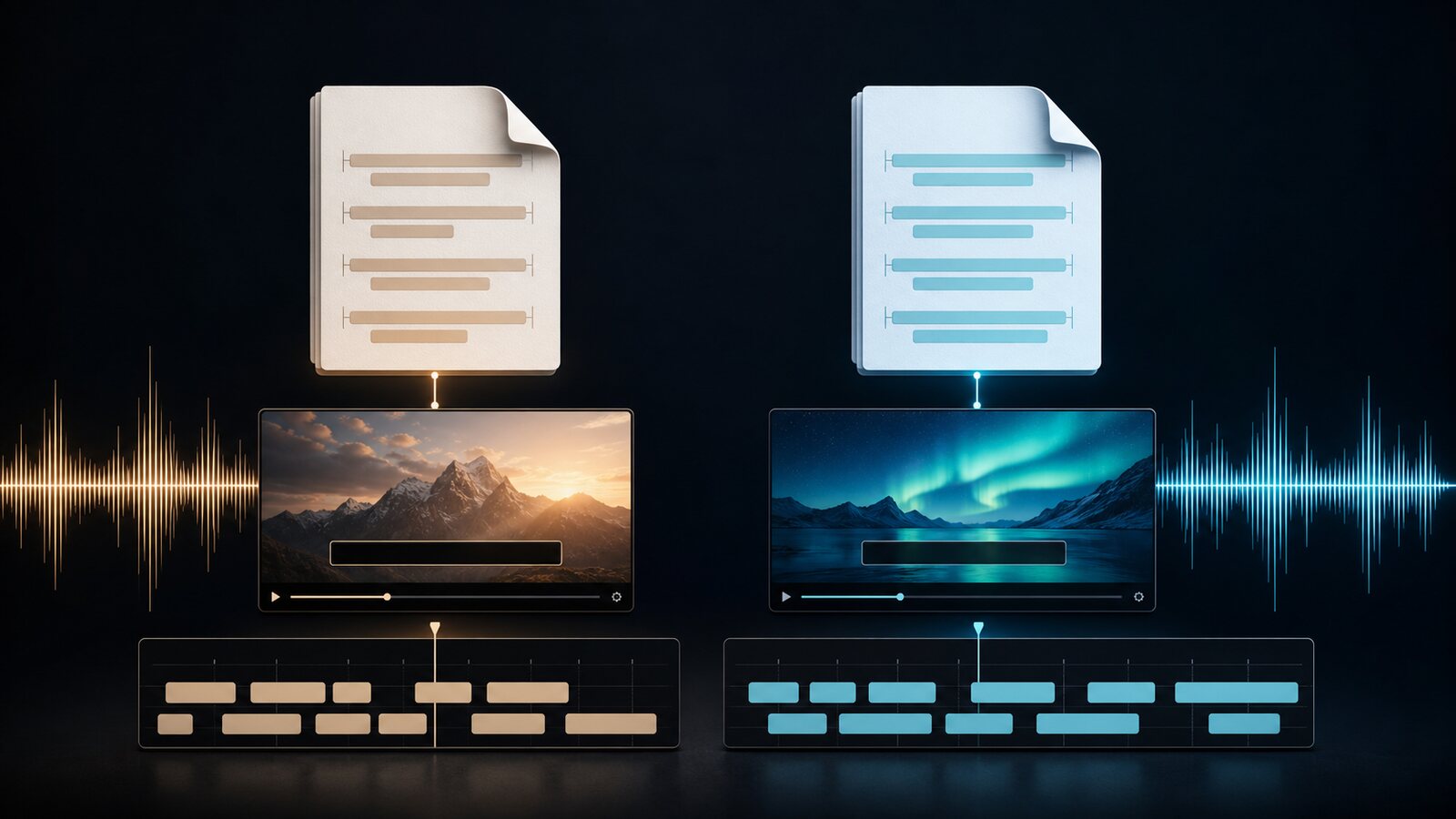
SRT vs VTT: Which Subtitle Format Should You Use?
Compare SRT and WebVTT syntax, styling, and documented compatibility, then verify the current requirements of your player, editor, or publishing platform.
How to Transcribe a Podcast: Complete Guide 2026
Learn how to create, review, and publish an editable podcast transcript with clear format and privacy checks.
This article was drafted with AI assistance and reviewed by The Captain before publication.