How to Convert MP3, AAC, FLAC, WAV, and MP4 Files to VTT Subtitles
Learn how to convert supported audio and video formats into a WebVTT (.vtt) subtitle file, with recording and review tips.
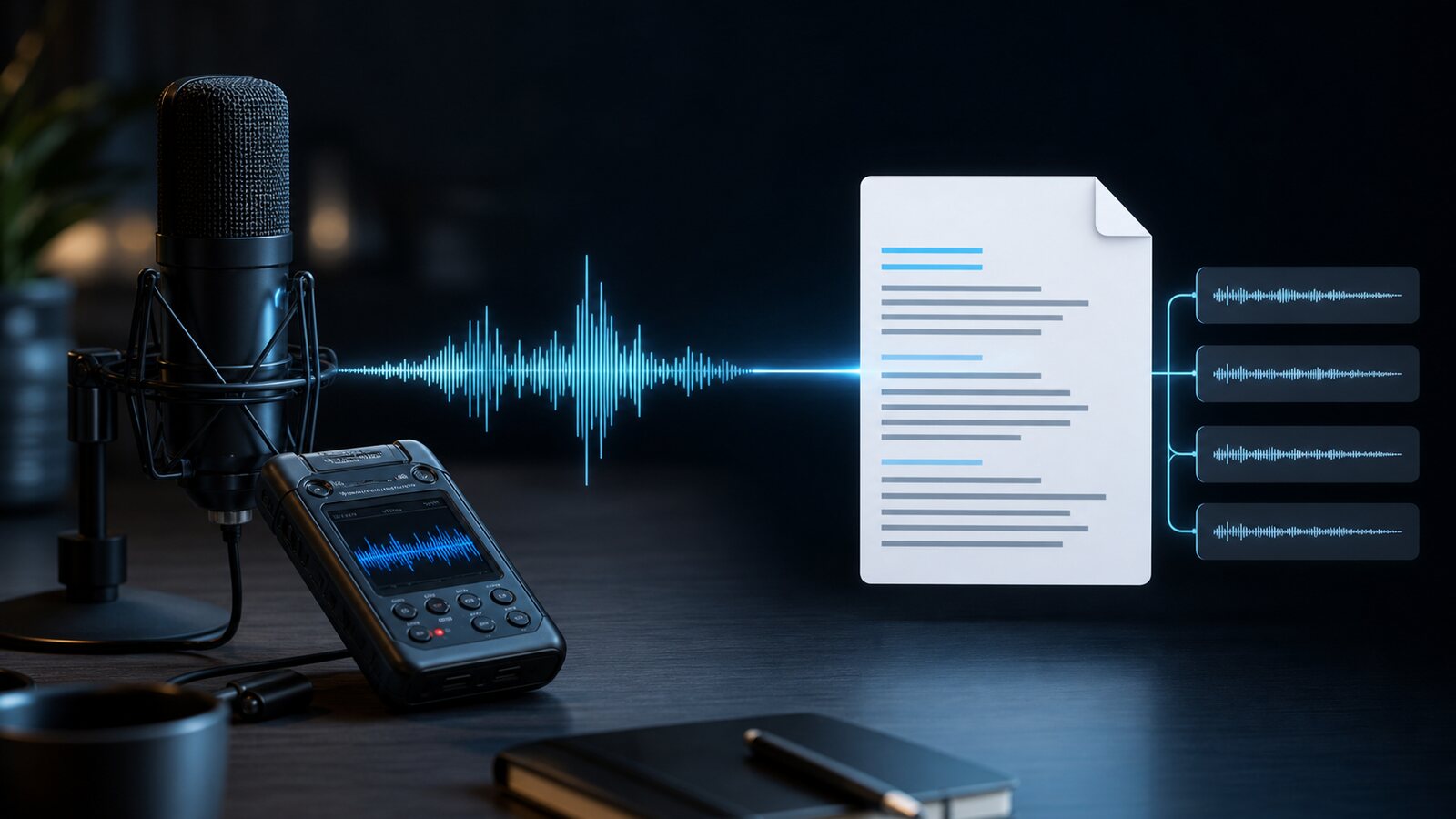
What Does "Convert Audio to VTT" Mean?
When people search for "AAC to VTT," "FLAC to VTT," or "MP3 to VTT," they are not looking for a raw format swap the way you would convert FLAC to MP3. Converting an audio or video file to VTT means transcribing the spoken words in the recording and saving the result as a WebVTT (.vtt) subtitle file — a structured text file with precise timestamps that tells any video player when to display each line of caption text.
The source audio or video file does not change. What you get back is a companion .vtt file you can attach to an HTML5 video with a <track> element, upload to YouTube or Vimeo, or feed into any web-based video player.
Common reasons people need this conversion:
- Adding subtitles to a web page video recorded in AAC, FLAC, or another audio format
- Making an older recording accessible with synchronized captions for an e-learning course
- Uploading archival audio to a platform that requires timed subtitle files
- Generating VTT caption files for video content stored in lossless formats to preserve quality
Which Audio and Video Formats Can Be Converted to VTT?
Captain Transcribe currently accepts MP3, WAV, OGG, OPUS, FLAC, M4A, AAC, MP4, AVI, MOV, MKV, and WEBM. An extension is only a container or encoding label; source quality, codec, speech, noise, and model choice all affect the draft.
| Format | Type | Practical Note |
|---|---|---|
| WAV | Often uncompressed PCM, but the container can hold other codecs | Can be large; check the 95 MB account limit |
| FLAC | Lossless compressed audio | Preserves the encoded signal, but does not repair a noisy source |
| MP3 | Lossy audio | Keep the original when possible; repeated or aggressive encoding can add artifacts |
| AAC / M4A | AAC is usually lossy; M4A is a container | Upload the supported original instead of adding another conversion |
| MP4 / MOV | Video container | Captain Transcribe extracts the audio during processing |
| MKV / WebM | Video container | Supported extensions; the embedded codec and source quality can vary |
Do not infer transcription quality from the extension alone. Benchmark an authorised sample and review the output.
Method 1: Generate and Review a Timed Draft
An AI transcription service can generate a timed VTT draft without manual timestamp entry. Captain Transcribe accepts the supported formats listed above, up to 95 MB; review the generated text and timing before exporting the VTT.
The complete workflow:
- Upload a supported file — Use MP3, WAV, OGG, OPUS, FLAC, M4A, AAC, MP4, AVI, MOV, MKV, or WEBM within the applicable size and quota limits. Video audio is extracted during processing.
- Select the spoken language — Choose the primary language or automatic detection. This setting can materially affect the result; verify a sample when speech is multilingual or uses a regional variety.
- Choose a subtitle style — Three options control how the VTT cues are segmented:
- Standard — Full-sentence cues, the default for YouTube, Vimeo, e-learning platforms, and traditional web video.
- Short — Groups of up to four words per cue for compact captions.
- Word-by-word — One timed word per cue for workflows that need granular timing.
- Download the VTT file — Once transcription completes, review the generated captions and click the VTT download button. The file includes the mandatory
WEBVTTheader, period-separated millisecond timestamps, and UTF-8 encoding.
From the same completed job you can also download SRT or plain text without rerunning speech recognition or consuming the minutes again.
Format-Specific Tips for Best Results
Converting FLAC to VTT
FLAC is a lossless format, so it avoids adding compression artifacts to the captured signal. That can help a transcription model when the source recording is otherwise clear, but it does not guarantee a particular accuracy: language, speech, noise, microphone placement, and the selected model still matter. A one-hour FLAC file can also exceed Captain Transcribe's current 95 MB upload limit, so check the file size before uploading.
Converting AAC to VTT
AAC is an audio codec and M4A is a container often used for AAC. If the original file is supported, upload it directly instead of transcoding it again. The extension and bitrate alone do not predict word-error performance.
Converting MP3 to VTT
MP3 is lossy, and repeated or aggressive encoding can introduce artifacts. Keep the original source where possible and avoid re-encoding solely for upload. A low-bitrate file may still be usable; test and review it rather than assuming a bitrate threshold guarantees a result.
Converting MP4 or MOV to VTT
Captain Transcribe extracts an audio track from supported video containers, so a separate audio-only conversion is not required. A container can hold different codecs; if processing fails, preserve the source and use a controlled conversion on a copy.
Optional trimming can remove non-speech and reduce the uploaded duration, but retain the source recording and do not remove context needed for review.
Method 2: Convert an Existing SRT File to VTT
If you already have a basic SRT subtitle file, it can often be converted to WebVTT in a text editor. Review the entire file: non-basic markup, cue settings, comments, and destination-specific behavior need more than delimiter replacement.
- Add the WEBVTT header — Open the SRT file in a text editor. Insert
WEBVTTas the very first line, then add one blank line below it before the first cue. This header is mandatory — without it, browsers reject the file silently. - Replace commas with periods in timestamps — SRT uses commas as millisecond separators (
00:00:01,500); VTT requires periods (00:00:01.500). Use Find & Replace in your editor to swap every comma in a timestamp to a period. Be precise: scope the replacement so you only change commas inside timestamp lines, not any commas in the caption text. - Save as UTF-8 with a
.vttextension — Choose UTF-8 encoding explicitly. On Windows Notepad, select "All Files" as the file type and type the filename ending in.vtt.
For more detail, see our SRT vs VTT comparison. Captain Transcribe lets you download either SRT or VTT from the same completed transcription.
What the VTT Output Looks Like
After converting a 30-second English recording using Captain Transcribe's Standard style, you get a VTT file structured like this:
WEBVTT

1
00:00:00.320 --> 00:00:03.840
In this tutorial, we are going to cover
how to convert audio files to VTT format.

2
00:00:04.160 --> 00:00:07.920
Processing time varies with the file,
options, providers, and service load.

3
00:00:08.240 --> 00:00:12.400
You can use a supported audio format —
MP3, AAC, FLAC, WAV, or MP4.
Key things to notice:
- The file begins with a valid
WEBVTTsignature. Validate the file if a player rejects it; malformed headers, timestamps, or cues can all be responsible. - Timestamps use periods as the millisecond separator (
00:00:00.320), never commas — the most common error when manually editing or converting VTT files. - Each cue has a sequential number, a timestamp range, and the caption text. Cues are separated by blank lines.
- The file is UTF-8 encoded, which handles all international characters, accents, and non-Latin scripts correctly.
Where to Use Your VTT File
Once you have the .vtt file, here is how to deploy it across the most common platforms:
- HTML video — Add a
<track>element such as<track src="subtitles.vtt" kind="subtitles" srclang="en" label="English" default>, serve it astext/vtt, and test the browsers you support. - YouTube — YouTube currently lists WebVTT. Use the current Studio workflow and preview the processed track.
- Vimeo — Vimeo currently documents SRT and WebVTT. Follow its current upload and validation instructions.
- Other players and learning platforms — Check the current accepted formats, MIME/CORS requirements, language metadata, and accessibility guidance before delivery.
Common Problems and Fixes
| Problem | Cause | Fix |
|---|---|---|
| VTT file does not display in browser | Missing WEBVTT header | Make WEBVTT the very first line of the file — no spaces, no BOM |
| Subtitles appear but timing is wrong | Commas instead of periods in timestamps | Find & Replace all timestamp commas with periods |
| Accented characters are garbled | Wrong file encoding | Re-save the file explicitly with UTF-8 encoding |
| Transcription accuracy is low | Wrong language selected, or noisy/distorted audio | Verify language and source; test any processing on a copy and compare a checked sample |
| Subtitles not loading on self-hosted page | Server sending wrong MIME type | Configure server to serve .vtt files with Content-Type: text/vtt |
Key Takeaways
- Converting audio to VTT is a transcription step, not a file format swap — the AI transcribes speech from the audio and outputs it as a timed subtitle file.
- Supported common formats — MP3, AAC, FLAC, WAV, M4A, MP4, MOV, AVI, MKV, OGG, OPUS, and WEBM, up to 95 MB.
- Lossless encoding preserves the captured signal, but no container or bitrate guarantees transcription quality.
- The WEBVTT header is mandatory — the first line of every .vtt file must be exactly
WEBVTT, or browsers reject it silently. - Timestamps use periods, not commas — the most common error when converting from SRT or editing manually.
- Video files do not need audio extraction first — upload MP4 or MOV directly and the transcription tool handles it.
Related Articles
Related articles
How to Get Accurate Voice to Text Transcription with AI: Complete 2026 Guide
Learn how recording conditions, language settings, vocabulary hints, model choice, and human review can improve an AI transcription workflow.
VTT Transcription: How to Convert Audio and Video to WebVTT Format
Learn how to transcribe audio and video files directly to WebVTT (.vtt) format using AI tools, manual methods, or SRT conversion — with step-by-step instructions for every workflow.
What is a VTT File? Everything You Need to Know About WebVTT
A complete guide to the VTT (WebVTT) subtitle file format: what it is, how it works, how to create VTT files, and when to use VTT vs SRT for your videos.
This article was drafted with AI assistance and reviewed by The Captain before publication.