What is a VTT File? Everything You Need to Know About WebVTT
A complete guide to the VTT (WebVTT) subtitle file format: what it is, how it works, how to create VTT files, and when to use VTT vs SRT for your videos.

What is a VTT File?
A VTT file — formally known as a WebVTT (Web Video Text Tracks) file — is a plain text file used to display timed text content alongside video or audio. It is the standard subtitle and caption format for the web, developed and maintained by the W3C (World Wide Web Consortium) as part of the HTML5 specification. VTT files use the .vtt file extension and can be opened with any text editor.
WebVTT is the standardized timed-text format used with the HTML <track> element. Browser support is broad, while rendering, styling, CORS, and accessibility behavior still need testing in the versions you support.
Unlike older subtitle formats that were built for desktop media players, WebVTT was created from the ground up for the internet. It supports features that matter on the web — CSS-based styling, precise positioning, metadata, and seamless integration with JavaScript — while remaining simple enough that anyone can read and edit the raw file in a text editor.
How Is a VTT File Structured?
A VTT file has a clean, human-readable structure. Every valid WebVTT file must start with the text WEBVTT on the very first line. After the header, the file contains a series of cues — individual subtitle entries that each specify when text should appear and disappear on screen.
Each cue consists of three parts:
- Cue identifier (optional) — A label for the cue, which can be a number or a descriptive name. This is optional and is mainly useful for referencing specific cues in JavaScript.
- Timestamp line — The start and end times separated by an arrow (
-->). Timestamps use the formatHH:MM:SS.mmmwith a period (not a comma) as the millisecond separator. - Cue text — The subtitle text to display. This can span multiple lines.
Here is a complete example of a valid VTT file:
WEBVTT

1
00:00:01.000 --> 00:00:04.500
Welcome to this video about WebVTT files.

2
00:00:05.000 --> 00:00:08.200
We will cover everything you need to know
about the VTT subtitle format.

3
00:00:09.000 --> 00:00:12.800
Let us start with the basics of how
this format works.
A few important details about the format:
- The
WEBVTTheader is mandatory. Without it, browsers and video players will reject the file. - There must be at least one blank line between the header and the first cue, and between each subsequent cue.
- The hours portion of the timestamp is optional for videos shorter than one hour —
00:01.000is valid and equivalent to00:00:01.000. - Cue identifiers are optional; a valid WebVTT file can omit them.
- The file must be saved with UTF-8 encoding to properly handle international characters.
Key Features of VTT Files
What sets WebVTT apart from simpler subtitle formats like SRT is its rich set of features designed for web use. These capabilities make VTT the preferred format for any web-based video project.
CSS Styling Support
VTT supports inline styling tags that let you control the appearance of your subtitle text. You can use familiar HTML-like tags to apply formatting:
WEBVTT

00:00:01.000 --> 00:00:04.000
This is <b>bold</b> and this is <i>italic</i>.

00:00:05.000 --> 00:00:08.000
<c.yellow>This text appears in yellow.</c>

00:00:09.000 --> 00:00:12.000
<v Speaker 1>Hello, how are you?</v>
The supported tags include:
<b>— Bold text<i>— Italic text<u>— Underlined text<c>— Apply a CSS class for custom colors and styles (e.g.,<c.yellow>)<v>— Voice tag to identify the speaker (e.g.,<v John>)<lang>— Specify the language of a text segment
When combined with a CSS stylesheet on your webpage, the <c> class tag gives you full control over subtitle appearance — font family, size, color, background, shadow, and more.
Cue Settings for Positioning and Alignment
VTT cues can include settings on the timestamp line that control exactly where and how subtitles appear on screen:
WEBVTT

00:00:01.000 --> 00:00:04.000 position:10% align:start
This text appears on the left side.

00:00:05.000 --> 00:00:08.000 line:0 align:center
This text appears at the top of the video.

00:00:09.000 --> 00:00:12.000 vertical:rl
This text displays vertically.
Available cue settings include:
- vertical — Display text vertically (
rlfor right-to-left,lrfor left-to-right). Useful for East Asian languages. - line — Vertical position of the cue on screen (by line number or percentage).
- position — Horizontal position of the cue (as a percentage).
- size — Width of the cue box (as a percentage of the video width).
- align — Text alignment within the cue box (
start,center,end,left,right).
Notes and Metadata
VTT files can include comments using the NOTE keyword. Notes are not displayed to viewers — they are useful for leaving internal annotations, credits, or instructions for translators:
WEBVTT

NOTE This file was generated by Captain Transcribe.
NOTE Last updated: March 2026

00:00:01.000 --> 00:00:04.000
Welcome to our video.
How to Create a VTT File
There are three practical methods for creating VTT files, ranging from fully automated to fully manual.
Method 1: Generate an Editable Timed Draft
An AI-powered transcription service can create a VTT draft without manual timestamp entry. Captain Transcribe accepts supported files up to 95 MB, generates editable timing and segmentation, and exports Standard, Short, or Word-by-word styles after review.
Method 2: Create Manually in a Text Editor
You can create a VTT file from scratch using any plain text editor — Notepad on Windows, TextEdit on Mac (in plain text mode), VS Code, Sublime Text, or any other editor you prefer. Start with the WEBVTT header, leave a blank line, then add your cues following the format described above. Save the file with the .vtt extension and make sure the encoding is set to UTF-8. Manual creation gives you complete control but is extremely time-consuming — expect to spend several hours per hour of video content as you watch, pause, type, and adjust timings.
Method 3: Convert from SRT
If you already have an SRT file, converting it to VTT is straightforward because the formats are very similar. The key changes are:
- Add
WEBVTTas the first line of the file. - Replace all commas in timestamps with periods (e.g.,
00:00:01,500becomes00:00:01.500). - Optionally remove the sequence numbers (they are not required in VTT).
You can do this with a simple find-and-replace in any text editor. For bulk conversions, many online tools and command-line utilities handle SRT-to-VTT conversion automatically. Or simply use Captain Transcribe, which exports both SRT and VTT from the same transcription — no conversion needed.
What Are the Differences Between VTT and SRT?
VTT and SRT are the two most popular subtitle formats, and they share a similar structure. However, there are important differences that determine which one you should use — see our full SRT vs VTT comparison for an in-depth look. Here is a quick comparison:
| Feature | VTT (WebVTT) | SRT (SubRip) |
|---|---|---|
| File extension | .vtt | .srt |
| Millisecond separator | Period (.) | Comma (,) |
| File header | WEBVTT (required) | None |
| CSS styling | Yes | No |
| Positioning | Yes (cue settings) | No |
| Metadata / notes | Yes | No |
| Web browser support | Native (HTML5) | Limited |
| Desktop player support | Good | Universal |
| Cue numbering | Optional | Required |
Use WebVTT for an HTML <track> workflow. For an editor or publishing platform, choose only from its current accepted-format list and test the import. See our SRT vs VTT comparison and SRT guide for the syntax differences.
Where to Use VTT Files
VTT files are supported across a wide range of platforms and technologies, particularly those built for the web:
- HTML video — Add
<track src="subtitles.vtt" kind="subtitles" srclang="en">inside the<video>element, serve the file astext/vtt, configure CORS where needed, and test supported browsers. - YouTube — YouTube accepts VTT file uploads for adding captions to your videos. Upload via YouTube Studio under the Subtitles tab, just as you would with an SRT file.
- Vimeo — Vimeo's help centre lists supported caption and subtitle formats, including WebVTT; verify the current list and upload workflow before publishing.
- Web-based video players — Many JavaScript players integrate browser text tracks or support caption adapters. Check the exact player's documentation, version, MIME and CORS requirements.
- E-learning platforms — Some learning-management and course-video systems accept WebVTT, while others require a different format or workflow. Use the platform's current accepted-format list.
- Streaming workflows — Some streaming pipelines support WebVTT or related segmented-caption workflows. Packaging requirements vary, so validate them against the delivery stack.
How to Open and Edit VTT Files
Because VTT files are plain text, you can open and edit them with any text editor on any operating system:
- Windows — Notepad, Notepad++, or VS Code
- Mac — TextEdit (switch to plain text mode first), Sublime Text, or VS Code
- Linux — gedit, nano, vim, or VS Code
- Online — Any web-based code editor
For more advanced editing with a visual timeline, dedicated subtitle editors like Subtitle Edit, Aegisub, and Jubler can open and save VTT files. These tools let you adjust timing visually alongside the video playback, which is helpful when you need to fine-tune subtitle synchronization.
When editing VTT files manually, always save with UTF-8 encoding and make sure the file extension remains .vtt. Some text editors on Windows default to ANSI encoding, which can corrupt non-English characters.
Common VTT Mistakes to Avoid
Even though the VTT format is straightforward, a few common errors can cause your subtitles to fail silently — the file loads without an error message, but no subtitles appear. Here are the mistakes to watch for:
- Missing WEBVTT signature — This is a common formatting error. A valid file starts with the WebVTT signature (allowing the specification's optional BOM/header text rules); use a validator when a player rejects it.
- Using commas instead of periods in timestamps — If you are converting from SRT or are used to the SRT format, you might accidentally use commas as the millisecond separator (e.g.,
00:00:01,500). VTT requires periods (00:00:01.500). Commas in timestamps will cause parsing errors. - Wrong file encoding — VTT files must be UTF-8 encoded. If you save with a different encoding (like Windows-1252 or Latin-1), accented characters and non-Latin scripts will display as garbled text or cause the file to fail.
- Missing blank lines between cues — Each cue must be separated by at least one blank line. If you forget the blank line between two cues, the parser may merge them or skip them entirely.
- Incorrect MIME type on your server — When serving VTT files from a web server, the file must be served with the MIME type
text/vtt. If your server sends it astext/plainor another type, some browsers will refuse to load it. Most modern web servers handle this correctly, but if your subtitles are not appearing on your website, check the MIME type configuration. - Overlapping timestamps — While VTT technically allows overlapping cues, they can cause display issues in some players. Keep your timestamps sequential with no overlap for the most reliable playback across all platforms.
Start Creating VTT Files Today
WebVTT is designed for timed text on the web and can express cue settings, metadata, and supported styling features that plain SRT syntax does not define. Platform support varies, so select the format from the destination's current documentation and preview the final result.
You can create an editable VTT draft with Captain Transcribe: upload a supported video or audio file, choose the language and subtitle style, review the generated words and timing, then export a standards-compliant VTT file. Try it with the free allowance.
Key Takeaways
- WebVTT is specified for timed text on the web — use it through the HTML track workflow and test the browsers you support.
- Every VTT file must start with WEBVTT — without this header browsers reject the file silently.
- VTT supports CSS styling and positioning — control font, color, and placement per cue.
- Converting SRT to VTT is straightforward — add the header and replace commas with periods.
- Choose for the destination — use only a currently accepted format and test the import or playback path.
Related articles

How to Add Subtitles to TikTok Videos in 2026
Learn a reviewable workflow for adding subtitles to TikTok videos with an editable AI-generated draft.

Best AI Transcription Tools in 2026: Complete Comparison
Compare transcription workflows, exports, language coverage, and pricing links, then benchmark candidates with your own audio.
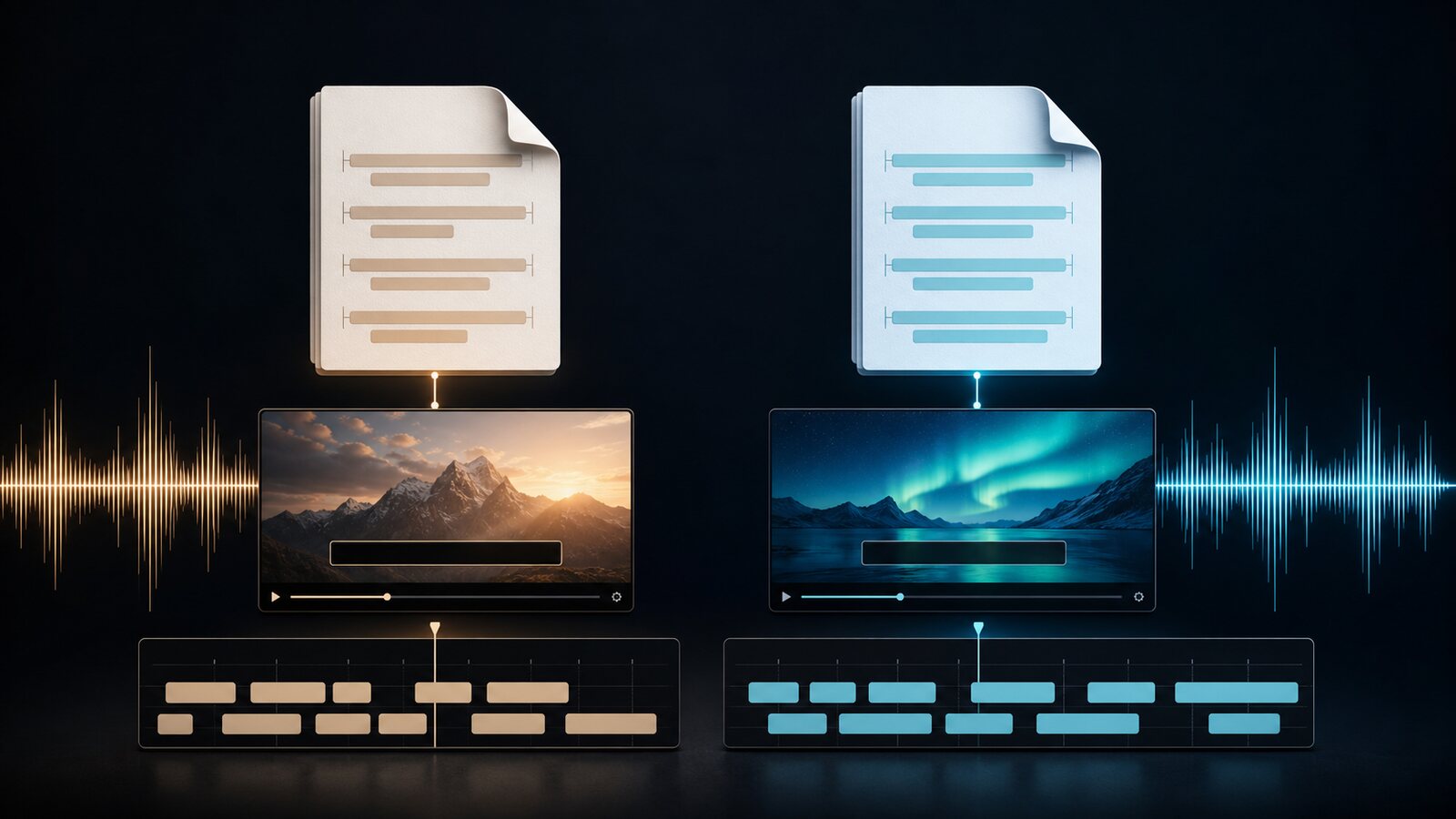
SRT vs VTT: Which Subtitle Format Should You Use?
Compare SRT and WebVTT syntax, styling, and documented compatibility, then verify the current requirements of your player, editor, or publishing platform.
This article was drafted with AI assistance and reviewed by The Captain before publication.