Transcription with Timestamps: How to Get Word-Level and Sentence-Level Timing from Audio
Learn how AI transcription generates timestamps at word, phrase, and sentence level — what the output looks like in VTT, SRT, and JSON formats, when to use each granularity, and how to get timed transcripts from any audio or video file.
What Does "Transcription with Timestamps" Mean?
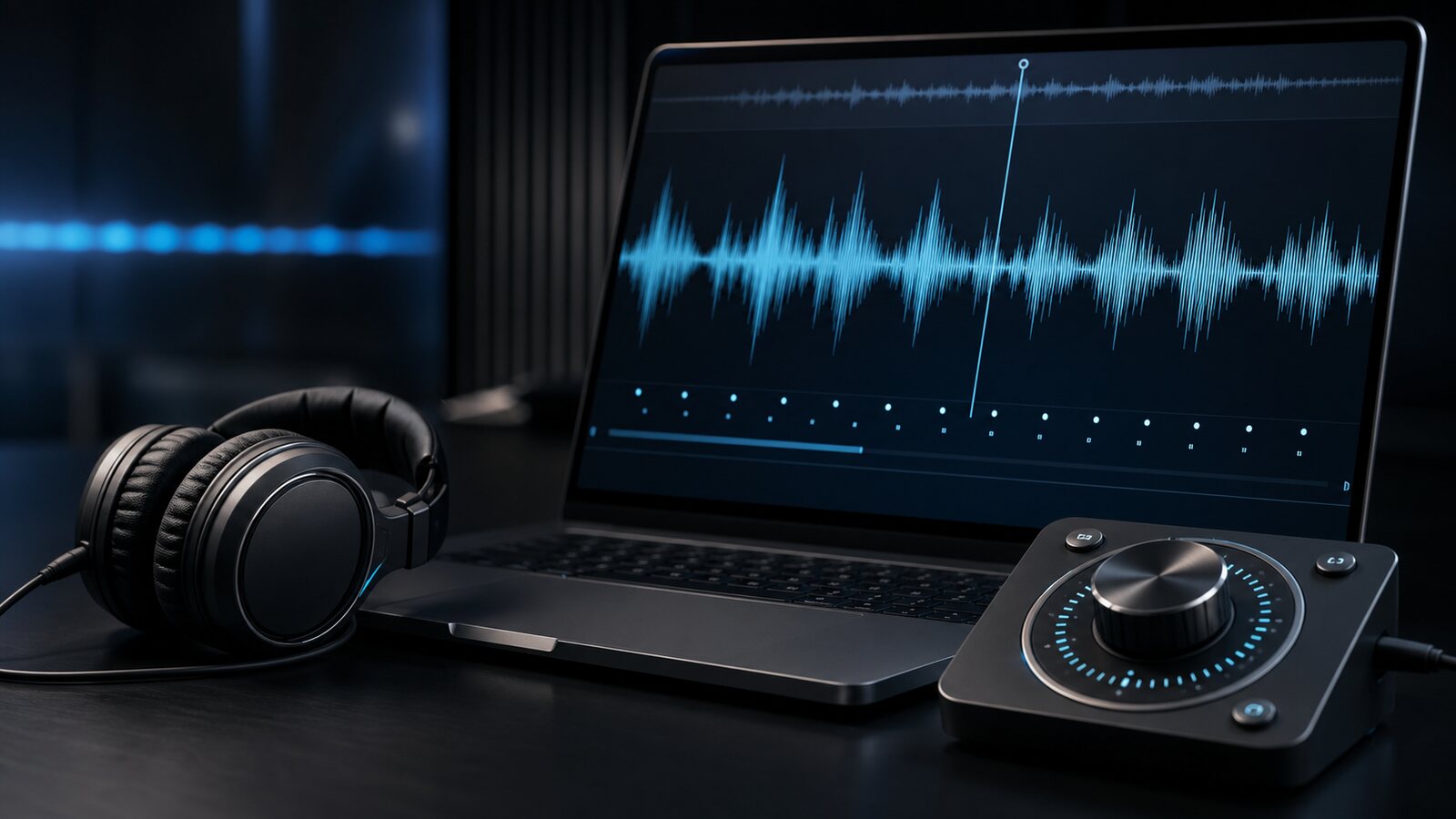
When an AI transcription tool processes your audio or video file, it does not just return a plain text document — it also records exactly when in the recording each piece of text was spoken. This is transcription with timestamps: a structured output that pairs every segment of text with a start time and an end time measured in hours, minutes, seconds, and milliseconds.
Timestamps in transcription exist at three levels of granularity, each suited to different use cases:
- Sentence-level (cue-level) timestamps — Each full sentence or natural phrase gets a single start–end range. This is the standard for VTT and SRT subtitle files used in YouTube, Vimeo, HTML5 video, and e-learning platforms.
- Short-phrase timestamps — Two to five words per timestamp range, used in social media video formats (TikTok, Instagram Reels) where captions update rapidly to match speech.
- Word-level timestamps — Each individual word receives its own start and end time. Used in karaoke-style captions, interactive transcripts where clicking a word jumps to that moment in the audio, and developer applications that need to highlight text as it is spoken.
The output format you need determines which granularity to request. For most captioning and subtitle workflows, sentence-level timestamps in VTT or SRT format are the right choice. For applications where the text must respond dynamically to the audio — search-within-audio, lyric display, accessibility tools — word-level timestamps are necessary.
How AI Tools Generate Timestamps
Speech-to-text providers can return timing at segment or word level alongside the recognized text. Availability and precision vary by provider, model, language, and audio quality.
Captain Transcribe normalizes the timing data returned by the selected provider and uses it to build three export styles:
- Standard style — Sentences and natural pauses determine cue boundaries. Each cue spans a complete thought. Best for traditional video captions.
- Short style — The output is segmented into short bursts of two to four words. The timestamps are word-aligned but grouped into small cues. Best for fast-paced social video.
- Word-by-word style — Each word is exported as its own timed cue. This is useful when you want to apply a fast, one-word-at-a-time caption layout in your target editor.
What Timestamped Transcription Output Looks Like
Here is the same 15-second audio segment transcribed at each granularity level using Captain Transcribe, exported as VTT:
Sentence-Level (Standard Style)
WEBVTT

1
00:00:00.320 --> 00:00:04.880
In this guide, we will cover how AI transcription
generates timestamps at different levels of detail.

2
00:00:05.200 --> 00:00:09.640
Sentence-level timestamps are the standard for
captions on YouTube, Vimeo, and HTML5 video.

3
00:00:09.960 --> 00:00:14.320
Word-level timestamps are used when text must
highlight in sync with audio, word by word.
Short-Phrase Style
WEBVTT

1
00:00:00.320 --> 00:00:01.680
In this guide,

2
00:00:01.680 --> 00:00:03.200
we will cover how

3
00:00:03.200 --> 00:00:04.880
AI transcription generates
Word-Level (Word-by-word Style)
WEBVTT

1
00:00:00.320 --> 00:00:00.520
In

2
00:00:00.520 --> 00:00:00.760
this

3
00:00:00.760 --> 00:00:01.120
guide,
All three outputs are valid WebVTT files — the difference is how the cue boundaries are placed. Word-by-word output uses one timed cue per word.
Note the key formatting rules enforced in all three: the file begins with exactly WEBVTT on line one, timestamps use periods as the millisecond separator (not commas, which belong to SRT), and each cue block is separated by a blank line.
How to Get Timestamped Transcription with Captain Transcribe
Getting a timestamped transcript from any audio or video file takes four steps:
- Upload your file — Go to captaintranscribe.com and upload your audio or video. Supported formats include MP3, AAC, FLAC, WAV, M4A, MP4, MOV, and MKV. For video files, the audio is extracted automatically — no pre-processing needed.
- Select the spoken language — Choose the correct language from the list. This is the most critical setting for timestamp accuracy: the wrong language degrades both the transcription quality and the alignment precision.
- Choose a subtitle style — Select Standard for sentence-level timestamps, Short for phrase-level, or Karaoke for word-level. The choice determines how the cue boundaries are placed in the output file.
- Download your format — Click the VTT or SRT download button. Both files include synchronized timestamps. The plain text download omits timestamps entirely — use it when you only need the words, not the timing.
From a single transcription job, you can download VTT, SRT, and plain text simultaneously without re-processing the audio. If you need all three formats for different platforms, one upload covers them all.
Timestamp Formats: VTT vs SRT vs JSON
Timed transcription output comes in several formats depending on the tool and intended use. Here is how they compare:
| Format | Timestamp Syntax | Best For | Word-Level? |
|---|---|---|---|
| VTT (WebVTT) | 00:00:01.500 (periods) |
HTML5, Vimeo, e-learning, web players | Yes (separate cues) |
| SRT (SubRip) | 00:00:01,500 (commas) |
YouTube, video editors, TikTok | Yes (separate cues) |
| JSON (API output) | Millisecond integers | Developer integrations, search indexing | Yes (most APIs) |
| TSV (Tab-separated) | Start/end columns | Spreadsheet workflows, data analysis | Yes (Whisper) |
| Plain text | None | Blog posts, documents, summaries | No |
The critical syntax difference between VTT and SRT is the millisecond separator: VTT uses a period (00:00:01.500) while SRT uses a comma (00:00:01,500). This single character difference is the most common source of VTT parsing failures when timestamps are edited manually or converted between formats. For a full breakdown of both formats, see our guide on SRT vs VTT subtitle formats.
When to Use Each Timestamp Granularity
| Use Case | Granularity | Recommended Format |
|---|---|---|
| YouTube and Vimeo captions | Sentence-level | VTT or SRT |
| HTML5 web video accessibility | Sentence-level | VTT (required by the <track> element) |
| TikTok, Instagram Reels | Short-phrase (2–4 words) | VTT or SRT |
| Music video lyrics / karaoke | Word-level | VTT or SRT with separate word cues |
| Interactive podcast transcript | Sentence-level | VTT or JSON |
| Search-within-audio (click to play) | Word-level | Provider JSON or timed word cues |
| Video editor (Premiere, DaVinci) | Sentence-level | SRT (widest editor compatibility) |
| E-learning / WCAG accessibility | Sentence-level | VTT (Moodle, Canvas, Coursera) |
Timestamp Accuracy: What Affects It
Timestamp quality is directly tied to transcription quality. The more accurately the AI identifies what was said, the more precisely it can pin where in the audio it was said. Several factors influence timestamp accuracy:
- Audio clarity — Clean recordings with low background noise generally produce better-aligned timestamps. Noisy or echoey recordings require more review around transitions.
- Speaking pace — Very fast speech compresses the acoustic signal; very slow speech with long pauses creates large gaps between cues. Both are handled correctly, but the output reflects the actual speech timing rather than a normalized version.
- Silence and non-speech audio — Long stretches of music, applause, or background noise before spoken content will create gaps in the timestamp sequence. This is accurate behavior: the AI is not trying to transcribe non-speech audio.
- Provider and model — Timing behavior varies by transcription provider and model. Review word-level output more closely when the speech is fast or unclear.
Always preview the exported captions against the final media and adjust cue boundaries where necessary, especially after editing the source video.
Using Timestamps for Web Accessibility
Timestamps are not just a convenience feature — they are required for web accessibility compliance. WCAG 2.1 Success Criterion 1.2.2 (Captions, Pre-recorded) requires synchronized captions for all pre-recorded audio content in video. The key word is "synchronized": a plain text transcript does not satisfy this criterion because it is not timed. A VTT or SRT file with accurate timestamps does.
For the HTML5 <video> element, VTT is the only caption format natively supported by browsers via the <track> element:
<video controls>
  <source src="interview.mp4" type="video/mp4">
  <track src="interview.vtt" kind="captions" srclang="en" label="English" default>
</video>
Setting kind="captions" rather than kind="subtitles" signals to screen readers and accessibility tools that the track includes not just speech text but also relevant non-speech audio information (speaker labels, sound effects). For content aimed at deaf or hard-of-hearing viewers, use captions; for translated subtitle tracks use subtitles.
Troubleshooting Timestamp Problems
| Problem | Likely Cause | Fix |
|---|---|---|
| Captions appear too early or too late | Consistent offset across all cues | Add a global offset in your video player's caption settings, or shift all timestamps by the offset amount using a subtitle editor |
| Captions drift over time (sync worsens) | Variable frame rate in the source video | Re-encode the video to a constant frame rate before re-transcribing; or use VFR-aware subtitle editor |
| Timestamps use commas — captions not loading | SRT syntax in a file with .vtt extension | Replace all timestamp commas with periods using Find & Replace; check the WEBVTT header is on line 1 |
| Overlapping cue times | Manual edit created a cue whose end time exceeds the next cue's start time | Open the file in a subtitle editor (Subtitle Edit, Aegisub) and use the automatic overlap detection tool |
| Word-level karaoke timing looks wrong | Low-confidence alignment on fast speech or noisy audio | Use sentence-level Standard style for noisy audio; karaoke timing works best on clear, single-speaker recordings |
Key Takeaways
- Transcription with timestamps pairs each spoken segment with a start and end time — the output is a structured subtitle file, not just a text document.
- Three levels of granularity exist: sentence-level (standard for captions), short-phrase (social video), and word-level (karaoke, interactive transcripts).
- Timing data varies by provider and model — review the exported captions against the final media before publication.
- VTT is the correct format for HTML5 web video timestamps; SRT works in video editors and on YouTube; JSON from APIs is the best choice for developer integrations.
- The period/comma distinction matters: VTT timestamps use periods (
00:00:01.500), SRT uses commas (00:00:01,500). Using the wrong separator causes browsers to silently ignore the file. - Synchronized captions are required for WCAG compliance — a plain text transcript does not substitute for a timed VTT or SRT file.
- Captain Transcribe generates all three export styles — choose Standard, Short, or Word by word and download VTT and SRT from the same job.
Related Articles
Related articles

Transcription APIs with Evaluation Allowances in 2026: Developer Guide
Compare current evaluation allowances and workflows for Google, AssemblyAI, Deepgram, self-hosted Whisper, and Rev AI.
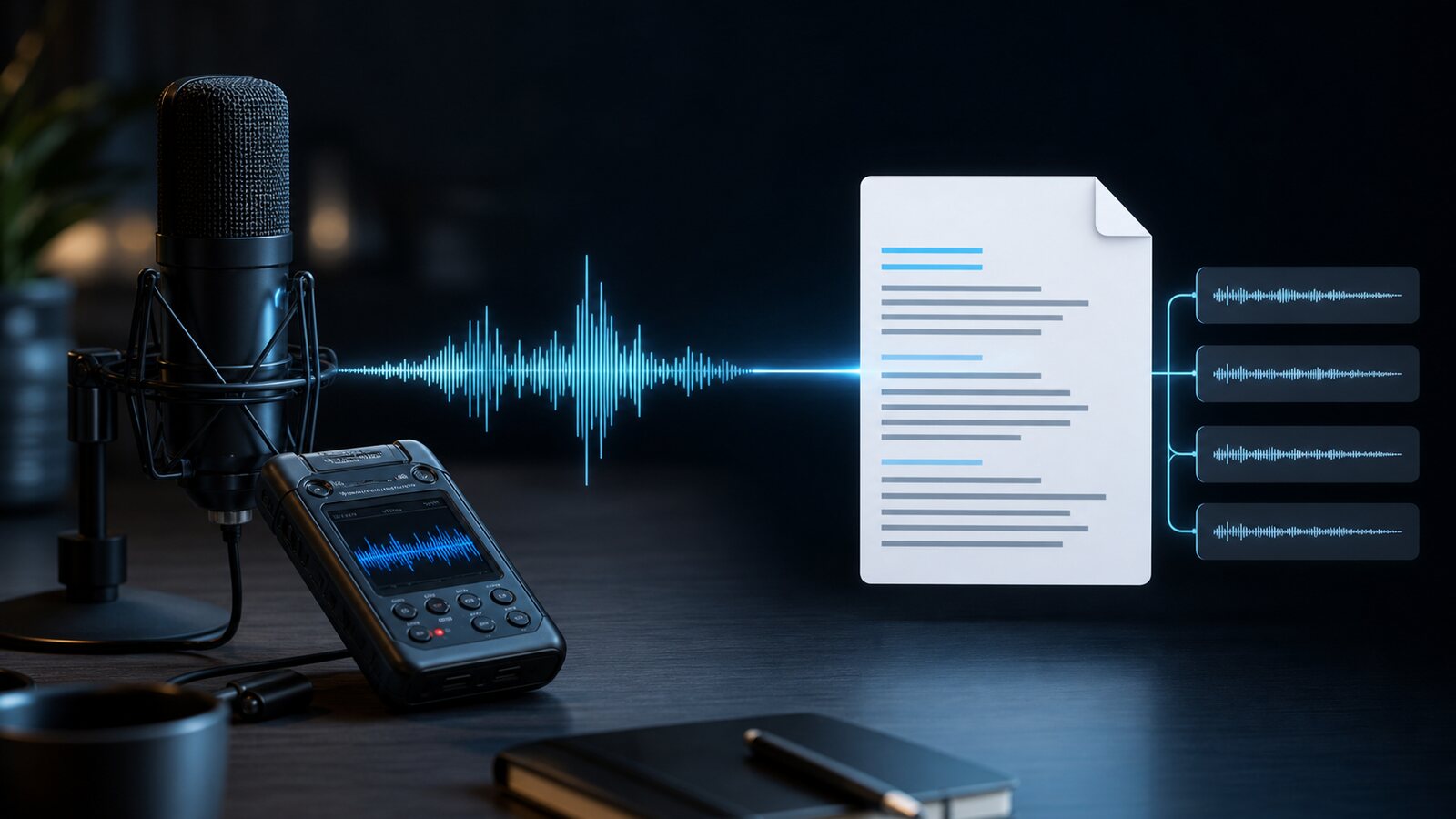
How to Convert MP3, AAC, FLAC, WAV, and MP4 Files to VTT Subtitles
Learn how to convert supported audio and video formats into a WebVTT (.vtt) subtitle file, with recording and review tips.
How to Get Accurate Voice to Text Transcription with AI: Complete 2026 Guide
Learn how recording conditions, language settings, vocabulary hints, model choice, and human review can improve an AI transcription workflow.
This article was drafted with AI assistance and reviewed by The Captain before publication.