Best Transcription Tools for Students: Lectures, Textbooks & Study Notes
Compare current transcription workflows for lectures, textbook audio, language courses, and study materials, including limited free options.
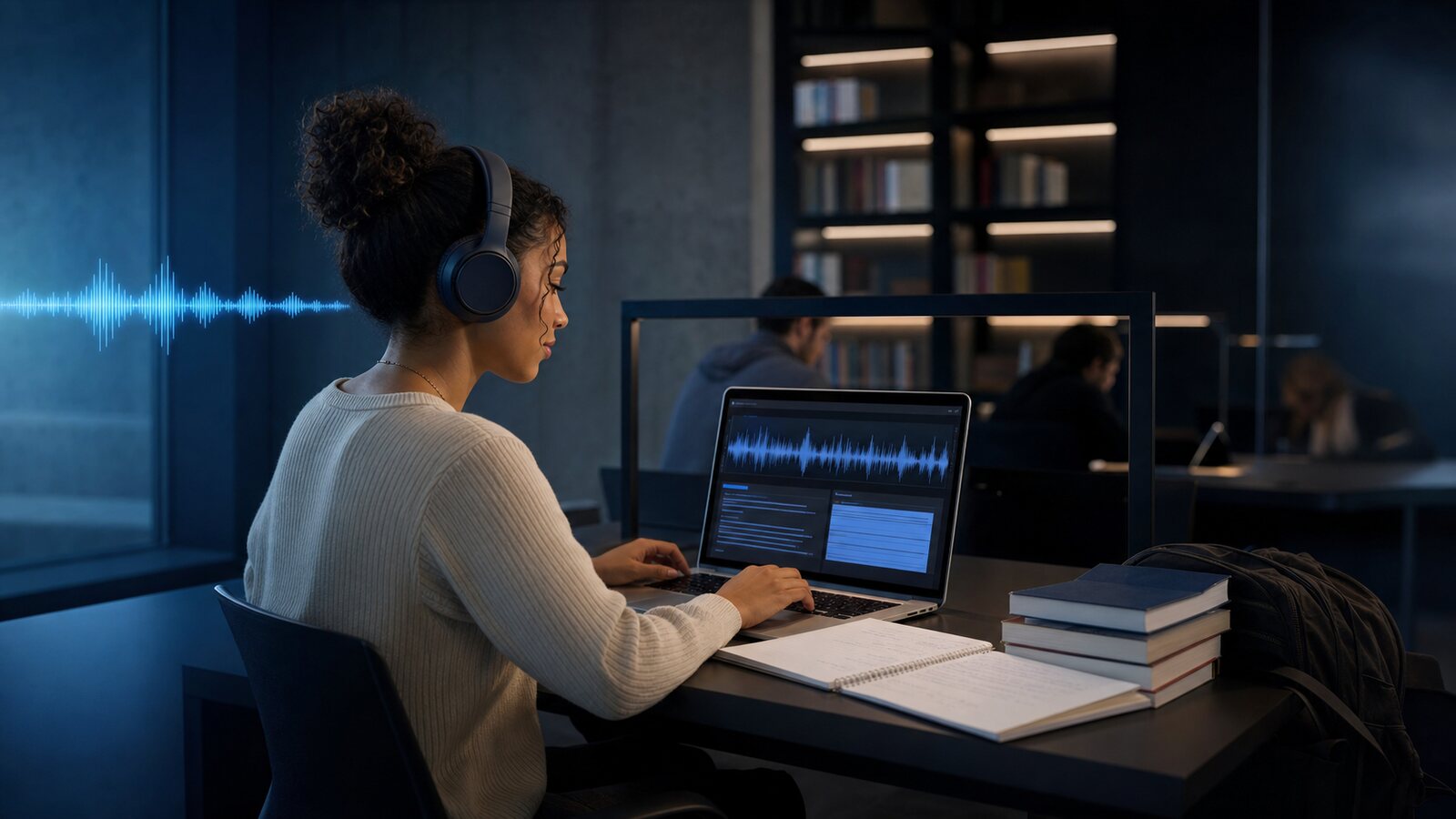
Different academic workflows need different tools: uploaded lecture recordings, live meeting capture, subtitle export, and self-hosted processing are not equivalent. The public plan information below was reviewed on 28 July 2026 and can change. This is a feature comparison, not an accuracy benchmark.
Why Should Students Use Transcription Tools?
Whether you are recording an authorised lecture, listening to textbook audio, learning a language, or reviewing an online course, a checked written version can make spoken passages searchable and annotatable alongside the source recording.
A searchable transcript can complement the recording and improve access for some students, including deaf or hard-of-hearing learners and people studying in a second language. It should support, not replace, the original course material or an institution's required accessibility accommodations.
Manual effort varies with the audio and required standard. AI tools automate a first draft; processing and review time varies with recording length, quality, selected provider, and current service load.
What Do Students Actually Need from a Transcription Tool?
Not every transcription tool is designed with students in mind. Here is what matters most for academic use:
- Measured output quality — Lectures often include technical vocabulary, names, numbers, and varied accents. Compare candidates on a checked sample.
- Language support — International students and language learners need tools that support multiple languages, not just English.
- Current cost and limits — Compare recurring allowances, per-file limits, export restrictions, renewal rules, and total cost.
- Export formats — Being able to export as plain text (for notes), SRT (for subtitles), or VTT (for web) matters depending on the use case.
- Speaker identification — If a lecture includes Q&A or group discussion, test generated labels and plan to review them.
- Operational fit — Compare browser upload, live capture, command-line setup, storage, and the review interface.
Five Transcription Options for Students
Use a short, authorised sample from your own course to compare word errors, names, numbers, timestamps, and editing effort. The table deliberately does not assign generic accuracy scores.
| Tool | Free Tier | Languages | Accuracy | Export | Example Workflow |
|---|---|---|---|---|---|
| Captain Transcribe | 10 min free | 28 | Not benchmarked | TXT, SRT, VTT | Multilingual, subtitle export |
| Otter.ai | 300 min/month | English, French, Spanish | Not benchmarked | Plan-dependent | Live meetings |
| Whisper (OpenAI) | No vendor minute allowance (local) | Multilingual | Not benchmarked | TXT, SRT, VTT | Self-managed local processing |
| Google Docs Voice Typing | Free (live only) | See current support list | Not benchmarked | Document text | Quick live-only dictation |
| Notta | See current plan | Check current list | Not benchmarked | Plan-dependent | Meeting notes, summaries |
Captain Transcribe: Uploaded Files with Multilingual Subtitle Export
Captain Transcribe is one option for students who need multilingual processing and subtitle-file output. Upload a supported lecture recording, textbook audio track, or language-course file, select one of 28 languages, and review the draft before downloading plain text, SRT, or VTT. This workflow can help language students read while listening or prepare captions for educational videos they are authorised to process.
You can add custom words such as professor names, technical terms, and course-specific jargon before transcription. Measure the result against a manually checked sample; quality varies by recording and language.
The free plan currently includes 10 minutes per month. Consult the pricing page for current paid-plan prices and allowances.
Evaluate for: Language learning, multilingual uploaded files, and editable TXT/SRT/VTT output.
Otter.ai: A Meeting-Focused Free Tier
Otter's pricing page lists 300 monthly minutes on Basic, support for English, French, and Spanish, meeting integrations, and three lifetime audio/video file imports. Per-conversation limits and exports vary by plan.
Evaluate for: Supported-language live lectures and online meeting notes, with permission from the organiser and participants.
Whisper (OpenAI): A Self-Hosted Option for Technical Students
OpenAI Whisper provides model code and weights that can run locally under its license. It is multilingual and does not impose a hosted SaaS minute allowance, but your hardware, electricity, storage, and maintenance still have costs.
You need command-line setup and sufficient compute. Runtime varies by model and hardware, and you are responsible for updates, security, and benchmarking. A third-party interface may have different terms.
Evaluate for: Students comfortable with the command line who can operate the software and account for compute, storage, maintenance, and security.
Google Docs Voice Typing: Live Dictation
Google Docs Voice Typing turns live microphone input into document text in the languages and browsers currently listed by Google. Availability, account requirements, and supported languages can change, so check that documentation before relying on it for a class.
The limitations are significant: Google Docs Voice Typing is designed for live microphone input rather than uploaded-file transcription, requires a supported browser and internet service, and does not create timed subtitle segments. Background noise and distant speakers can reduce quality.
Evaluate for: Live dictation when uploaded-file processing and timed subtitle output are not required.
Notta: Meeting Notes and Summaries
Notta's current pricing page describes its meeting, transcription, summary, language, integration, and export features by plan. Check the current allowance and per-recording restrictions before importing a lecture.
Generated summaries can assist review, but students should verify both the transcript and summary against the authorised source recording.
Evaluate for: Meeting-oriented capture and generated summaries, subject to the current plan and institutional rules.
How Students Actually Use Transcription Tools
Beyond the obvious "record lecture, get transcript," here are practical academic use cases we have seen:
Transcribe Textbook Audio Tracks
Many language textbooks come with audio CDs or MP3 files. When the licence permits processing, students can create a text draft to read alongside the audio, check pronunciation, or prepare flashcards. Captain Transcribe supports 28 selectable languages and editable text output; the draft still needs review.
Create Study Notes from Recorded Lectures
With the professor's and participants' permission, record the lecture, upload the file, and review the resulting transcript. You can then search passages, add annotations, and prepare condensed study notes alongside the original course materials.
Subtitle Educational Videos
If you are creating an authorised presentation, study-group video, or course project, reviewed SRT subtitles can improve access to the spoken content. Upload a supported video, review the SRT draft, and import it into a compatible editor. Captions alone do not establish accessibility compliance.
Language Learning: Read What You Hear
Transcribing foreign-language audio (podcasts, news, films, course materials) gives you a text you can study. Look up unfamiliar words, note grammar patterns, and practice reading speed. For podcast transcription specifically, the workflow is simple: download the episode, upload, transcribe.
Accessibility
Transcripts can improve access for some deaf or hard-of-hearing students and people with auditory-processing difficulties. Ask the institution's accessibility service for the accommodations it is required to provide; an unverified AI draft is not a substitute for an official accommodation.
How to Test Academic Audio Workflows
Academic recordings are not always studio-quality. These checks can help you compare results:
- Place the microphone close to the speaker — A suitable external microphone can improve the speech-to-noise ratio, but test the actual room and equipment before the lecture.
- Minimize background noise — Sit closer to the front. Avoid recording near air conditioning vents, open windows, or chatty neighbors.
- Compare language settings — On a checked sample, compare explicit language selection with automatic detection.
- Add custom words — If your course uses specific terminology (molecule names, historical dates, technical acronyms), add them as custom words before transcribing. Captain Transcribe supports this natively.
- Avoid unnecessary re-encoding — Keep the original recording when possible. PCM WAV and FLAC are lossless; M4A is a container and may contain lossy AAC. File size, source quality, and the 95 MB upload limit still matter.
Which Tool Should You Pick?
The right tool depends on your specific situation:
- You need uploaded-file TXT/SRT/VTT export in a supported language → test Captain Transcribe with an authorised sample
- You attend supported-language online lectures → evaluate Otter.ai's current meeting and import limits
- You can operate local models without a vendor minute allowance → evaluate Whisper and include compute, storage, maintenance, and security costs
- You need live dictation during class → evaluate Google Docs Voice Typing against its current browser, language, and account requirements
- You want generated summaries of lectures → evaluate Notta's current plan, privacy terms, and summary review workflow
- You need SRT subtitles for a video project → test Captain Transcribe export and follow the current import instructions for your exact editor version
Whichever tool you try, obtain permission before recording or uploading a class, avoid sensitive material unless the institution authorises the processor, and compare the output with the recording before using it as study material.
Key Takeaways
- AI transcription can save review time — it automates a first draft, while processing time and editing needs vary by recording.
- Captain Transcribe supports 28 selectable languages — with TXT, SRT, and VTT output that remains editable.
- Otter Basic lists 300 monthly minutes — alongside file-import, conversation, language, and export constraints to verify.
- Real academic use cases go beyond lectures — Textbook audio, language learning, accessibility, video subtitling are all served by transcription tools.
- Audio quality materially affects the draft — Reduce background noise, place the microphone appropriately, and benchmark each candidate tool with an authorised sample.
Related Articles
- Free Transcription Tools: Honest Comparison
- Best AI Transcription Tools in 2026
- How to Get More Accurate Transcriptions
- How to Transcribe a Podcast Episode
- How to Edit SRT Files in Premiere Pro, DaVinci Resolve & CapCut
- What is an SRT File? Complete Guide
- SRT vs VTT: Which Format Should You Use?
- How to Add Subtitles to TikTok Videos
Related articles
How to Style and Position WebVTT Captions: Cue Settings, STYLE Blocks, and CSS ::cue
Learn how to move, align, resize, and style WebVTT captions with line, position, size, align, vertical text, cue-text markup, embedded STYLE blocks, and CSS ::cue.
How to Create a VTT File: Best VTT Creator, Generator, and Editor Tools (2026)
Compare every method for creating WebVTT caption files in 2026 — AI transcription tools, online VTT generators, subtitle editor software, SRT converters, and command-line options — so you can pick the right VTT creator for your workflow.
VTT Transcription for Video Editors: Using WebVTT Caption Files in Premiere Pro and DaVinci Resolve
A step-by-step guide for video editors on how to create VTT caption files, import them into Premiere Pro or DaVinci Resolve, edit captions in the timeline, and export finished subtitle tracks ready for YouTube, Vimeo, and HTML5 web video.
This article was drafted with AI assistance and reviewed by The Captain before publication.